How to Setup Free VPN on Any Smart TV (No Ads, No Subscription)

How to Setup Free VPN on Any Smart TV (No Ads, No Subscription)
If you’ve ever wanted to use a VPN on your smart TV but didn’t want to pay for subscriptions or deal with annoying ads, you’re not alone.
Many people think VPNs are only for phones or computers, but the truth is — you can easily install a free VPN directly on your smart TV and start browsing more privately in just a few minutes.
In this guide, I’ll show you exactly how to set up a free VPN on your smart TV without paying anything.
What Does a VPN Do on a Smart TV?
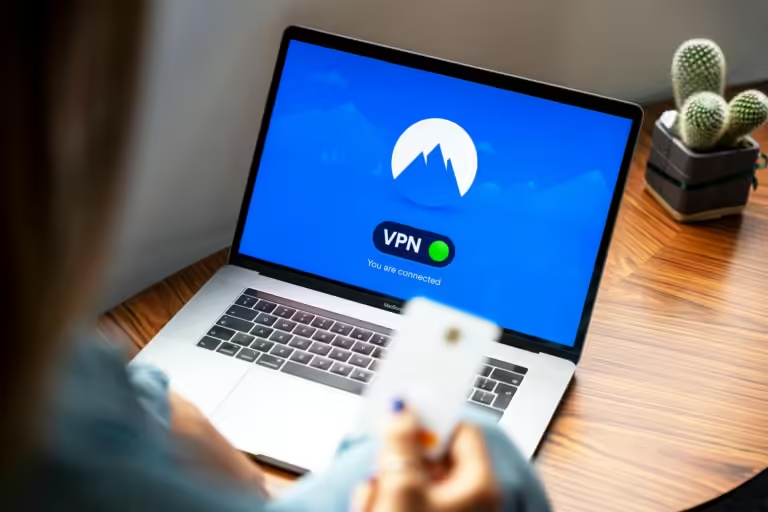
A VPN (Virtual Private Network) helps protect your internet connection by routing it through a secure server.
When you use a VPN on your smart TV:
- Your IP address is hidden
- Your internet activity becomes more private
- You can access content with fewer restrictions
- Your connection becomes more secure
This is especially useful if you stream content, browse the web on your TV, or just want extra privacy.
What You Need to Get Started
Before we begin, make sure you have the following:
- A Smart TV running Android TV or Google TV
- Access to the Google Play Store
- A free VPN app like Proton VPN
That’s it. No subscription, no payment required.
Step-by-Step: How to Install Free VPN on Smart TV
1. Open the Google Play Store
Turn on your smart TV and go to the Google Play Store using your remote.
2. Search for a VPN App
Search for Proton VPN and select the official app from the results.
Click Install and wait for it to finish downloading.
3. Open the VPN App
Once installed, open the app.
You’ll be asked to:
- Sign in, or
- Create a free account
If you don’t have an account, you can create one quickly using your email.
4. Create a Free Account (If Needed)
If prompted:
- Go to protonvpn.com/tv on your phone or computer
- Click Create Account
- Choose the free plan
- Enter your email and sign up
After that, return to your TV.
5. Link Your TV
Your TV will show a code.
- Enter that code on your phone or computer
- Click verify
Your TV will now be linked to your VPN account.
6. Connect to a VPN Server
Inside the app:
- Choose a free server
- Click Connect
Within seconds, your smart TV will be connected to the VPN.
How to Check If the VPN Is Working
To confirm everything is working:
- Open a streaming app or browser
- Try loading content
If everything works normally, your VPN is active and protecting your connection.
Limitations of Free VPNs
Free VPNs are great, but it’s important to be honest about what to expect.
You may experience:
- Limited server locations
- Slightly slower speeds
- Fewer advanced features
However, for basic privacy and light streaming, free VPNs work very well.
Bonus Tip: Use VPN on All Devices
If your smart TV does not support VPN apps directly, you can install the VPN on your router.
This way:
- Every device connected to your Wi-Fi uses the VPN
- Your entire home network is protected
Final Thoughts
You don’t need to pay for a VPN to enjoy better privacy on your smart TV.
With a simple setup using a free app, you can secure your connection, browse safely, and improve your overall streaming experience — all without subscriptions or ads.
Watch the Full Video Tutorial
If you want to see the full step-by-step process in action, watch the video on PauTECtips where everything is demonstrated clearly.
Related Topics You Should Check Next
- How to Turn Your Phone Into a Laptop
- How to Save Mobile Data Without Wasting It
- Best Apps for Low Data Usage
Conclusion
Setting up a free VPN on your smart TV is easier than most people think.
With just a few steps, you can take control of your privacy and start using your smart TV more securely — without spending any money.